5.7 OpenVPN
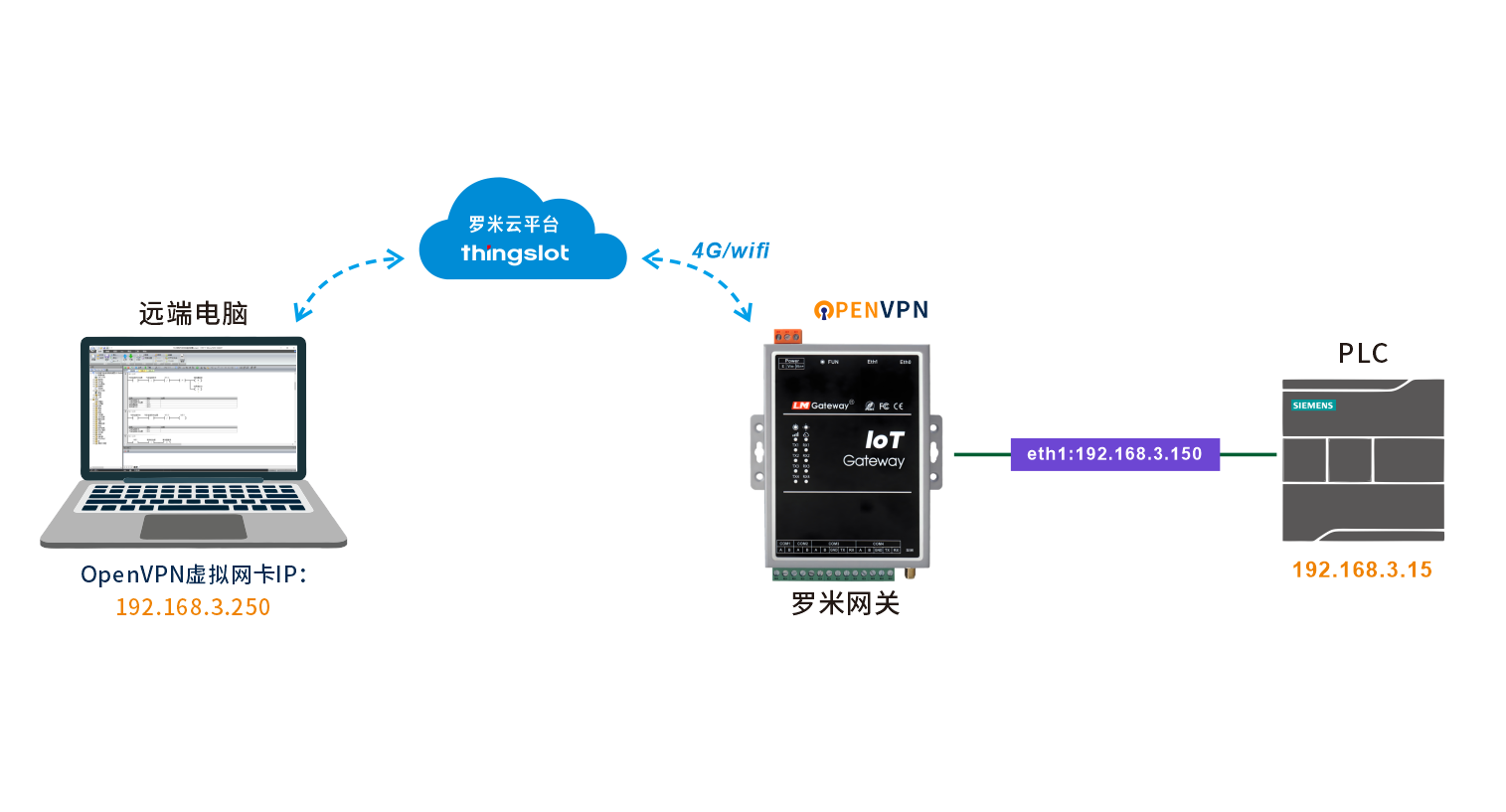
1.Enable Connection
First, open the VPNConnect.exe application located at ./GWConfigureV2.4.25/Tool/PenetrateOpenVPN under the configuration tool installation directory.
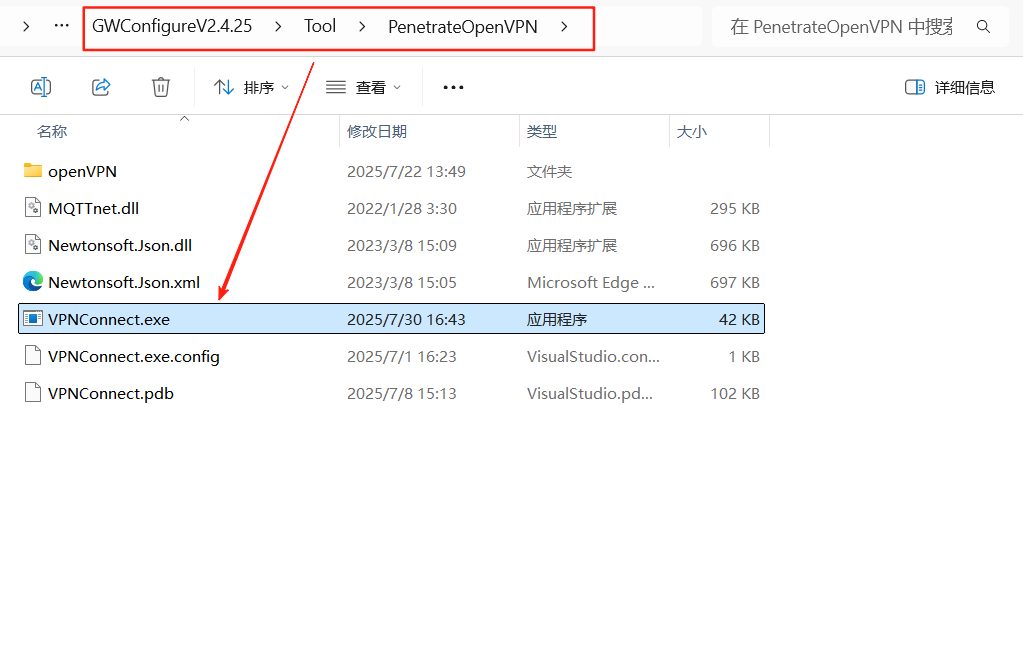
Installation is required upon first launch.
Open VPNConnect.exe
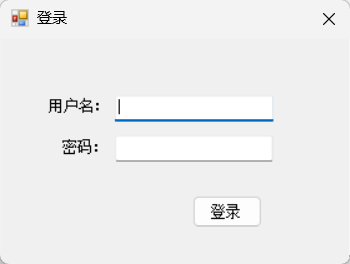
The login username and password are the same as your Things platform credentials.
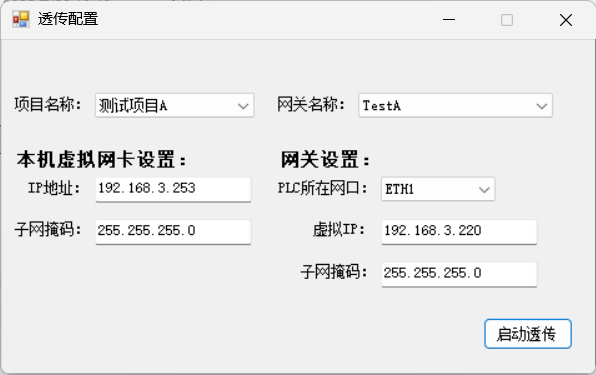
Select the corresponding project and gateway in the LM ThingsIoT platform.
**# Local Virtual Network Adapter Settings: **
- IP address: Set the virtual IP of the local computer (set it to the same network segment as the PLC address, and ensure the IP does not conflict with others).
- Subnet mask: The subnet mask of the PLC address.
**# Gateway Settings: **
- PLC Port: Select the gateway Ethernet port connected to the PLC, either ETH0 or ETH1.
- Virtual IP: Configure the gateway's virtual IP, which must be within the same network segment as the PLC with no IP address conflicts.
- Subnet mask: The subnet mask of the PLC address.
Click Start Pass-Through. The connection works normally once it shows the pass-through channel has been established successfully.
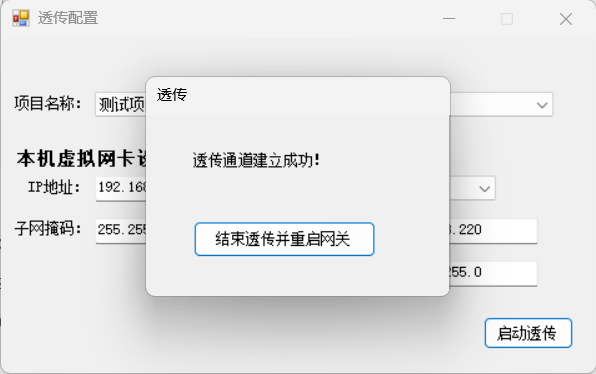
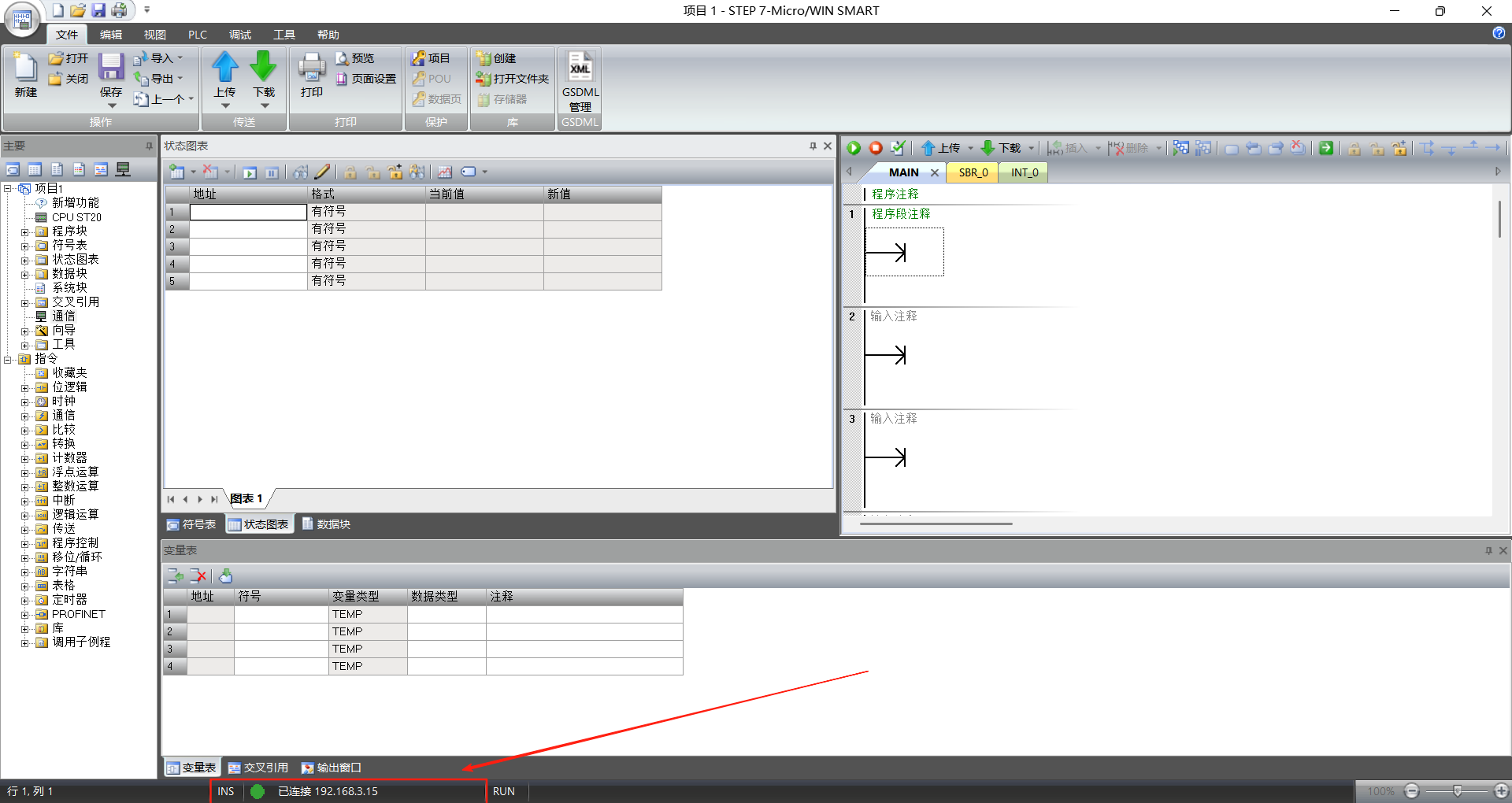
Now you can access the remote PLC devices from your local PC.
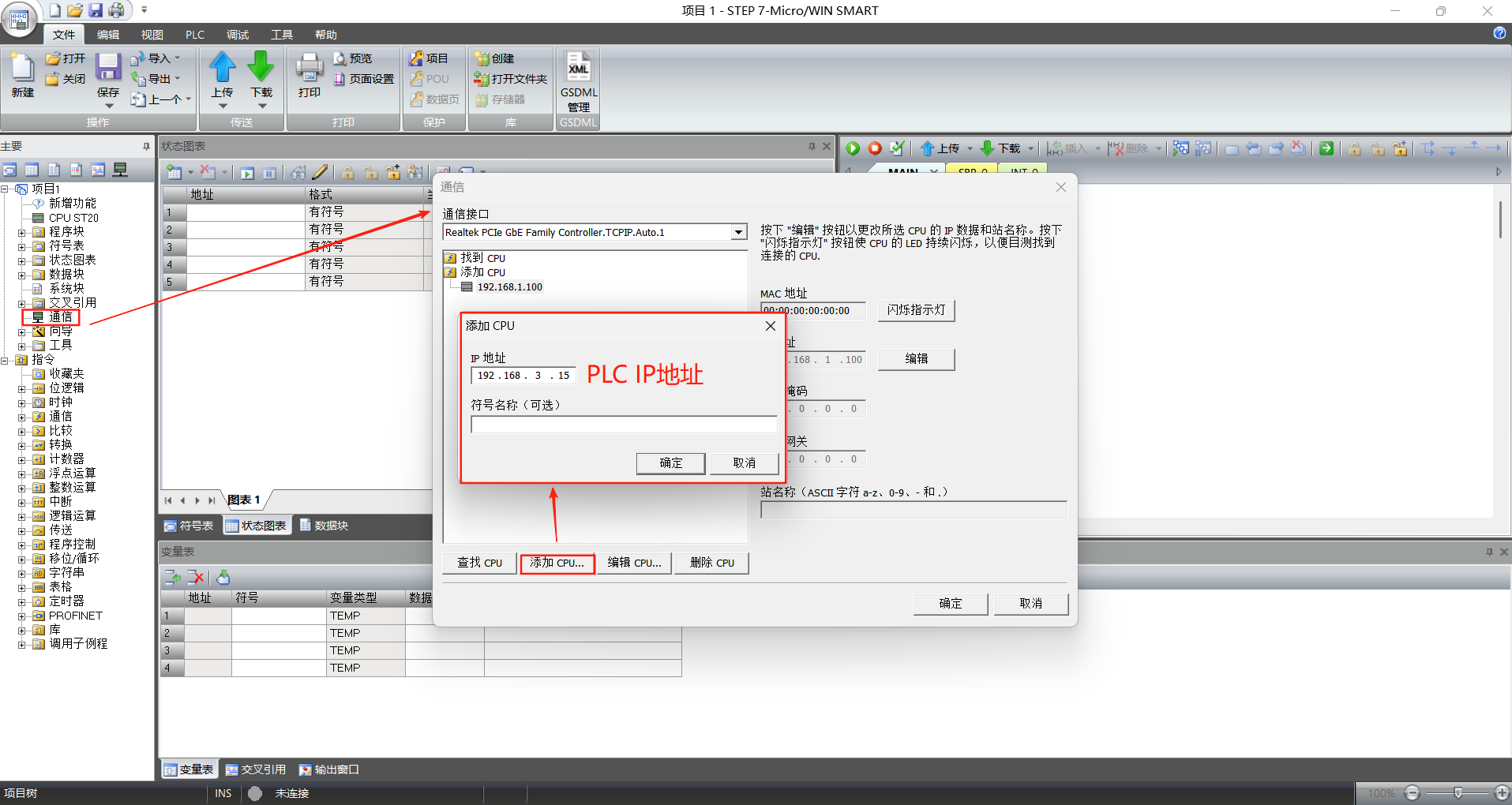
Click OK to establish a successful connection to the PLC device.