5.6 Driver Search Function
Version 2.4 of the configuration tool adds a quick search function for multi-protocol drivers (supporting common industrial IoT protocols including OPC UA, BACnet, IEC104, MBUS, etc.). By optimizing driver retrieval logic and matching mechanisms, it greatly simplifies driver lookup and point filtering when users configure data acquisition tasks for the above protocols, significantly improving the convenience and operational efficiency of protocol data acquisition setup.
The following section provides search examples for relevant protocol drivers.
OPC UA
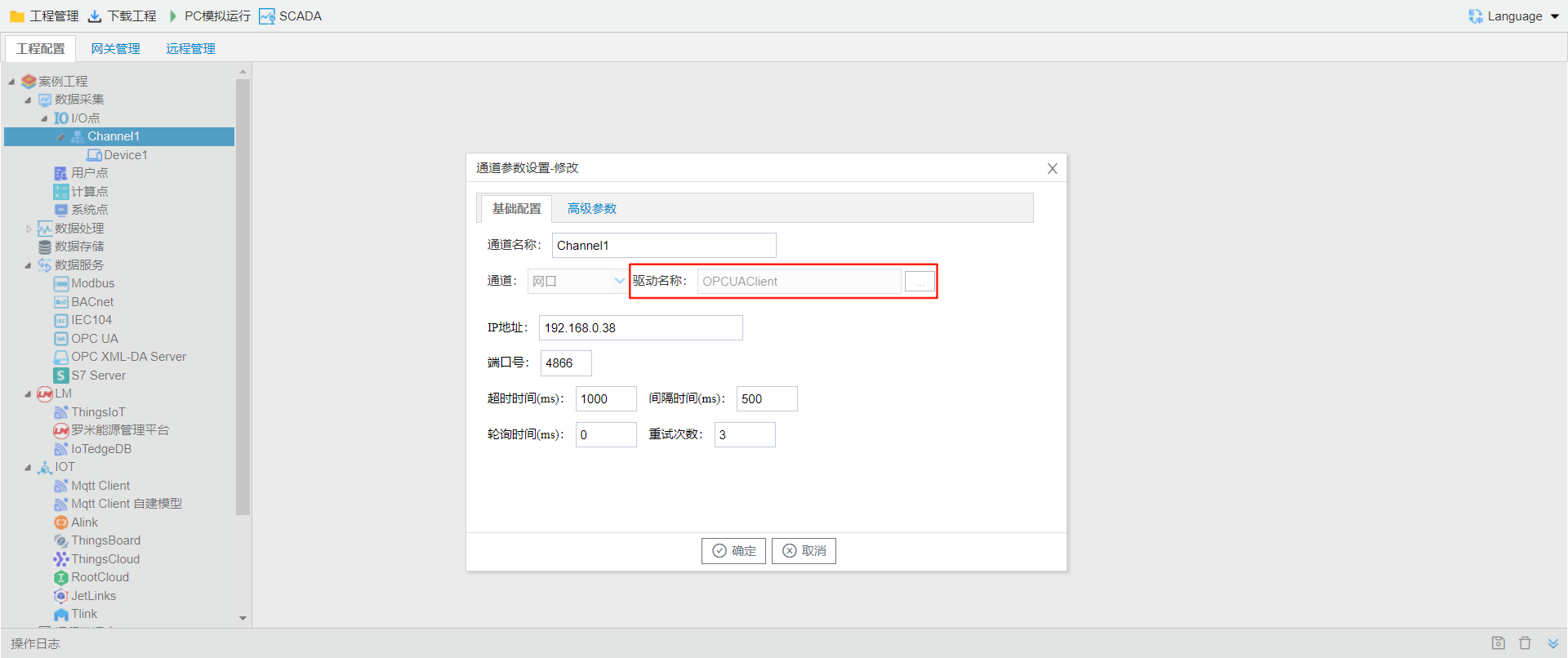
Add Acquisition Points Using the Search Function
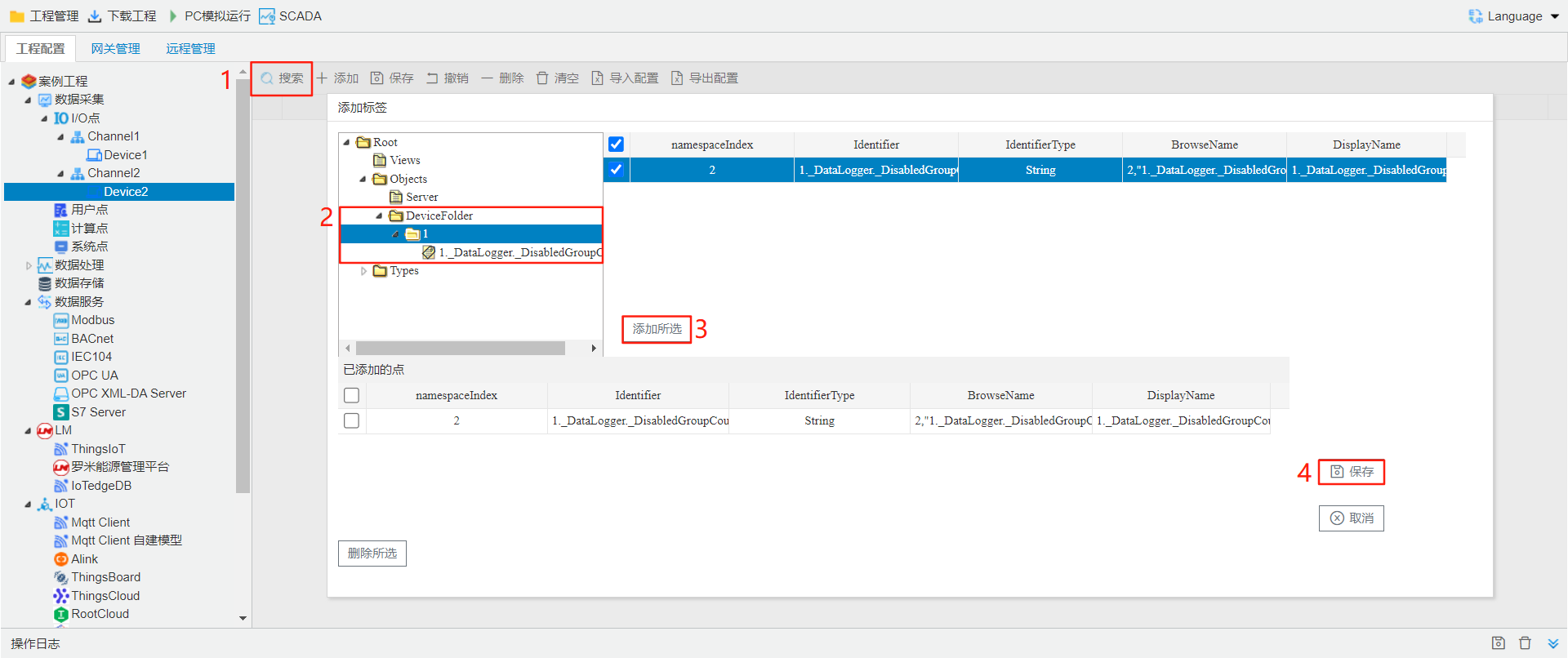
As shown in the figure below, click Search. All available tags for collection will be displayed. Select the tags you want to collect, click Add Selected, then click Save to complete the configuration of acquisition points.
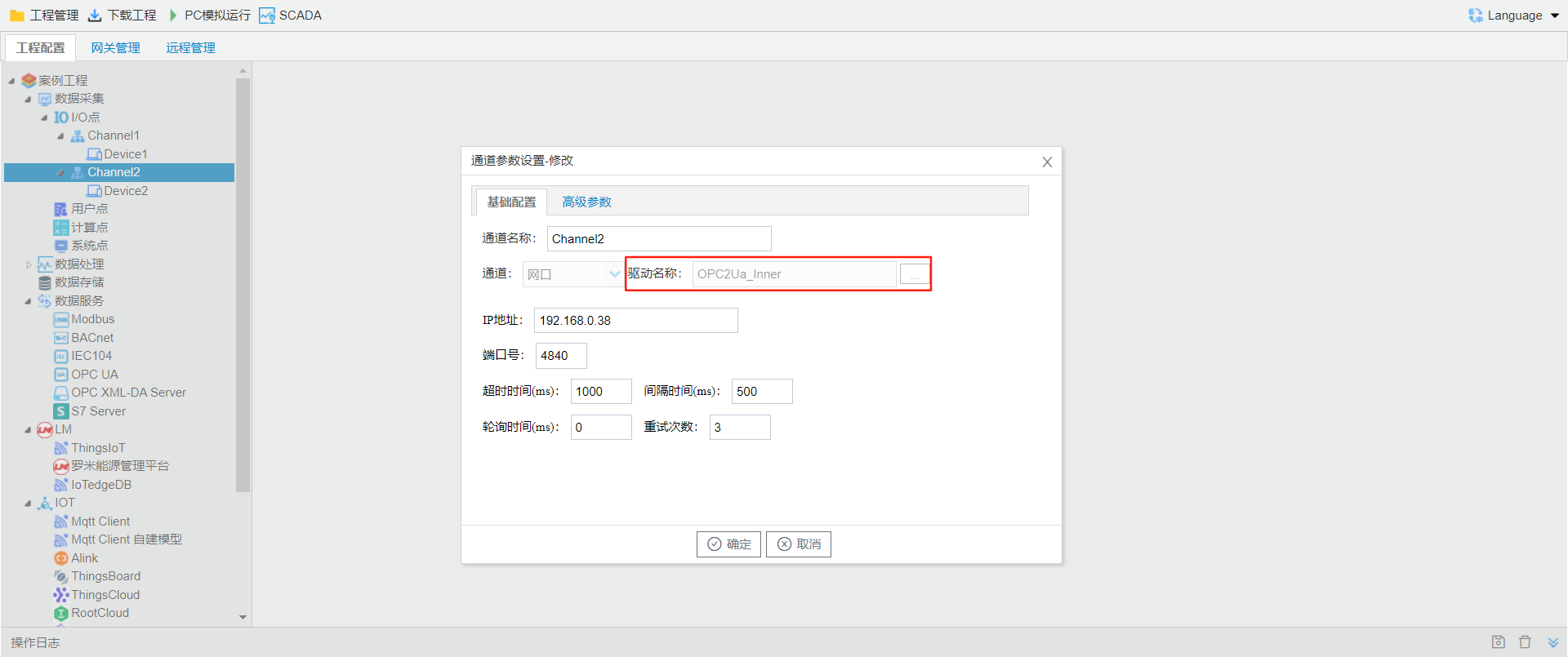
OPC2Ua_Inner
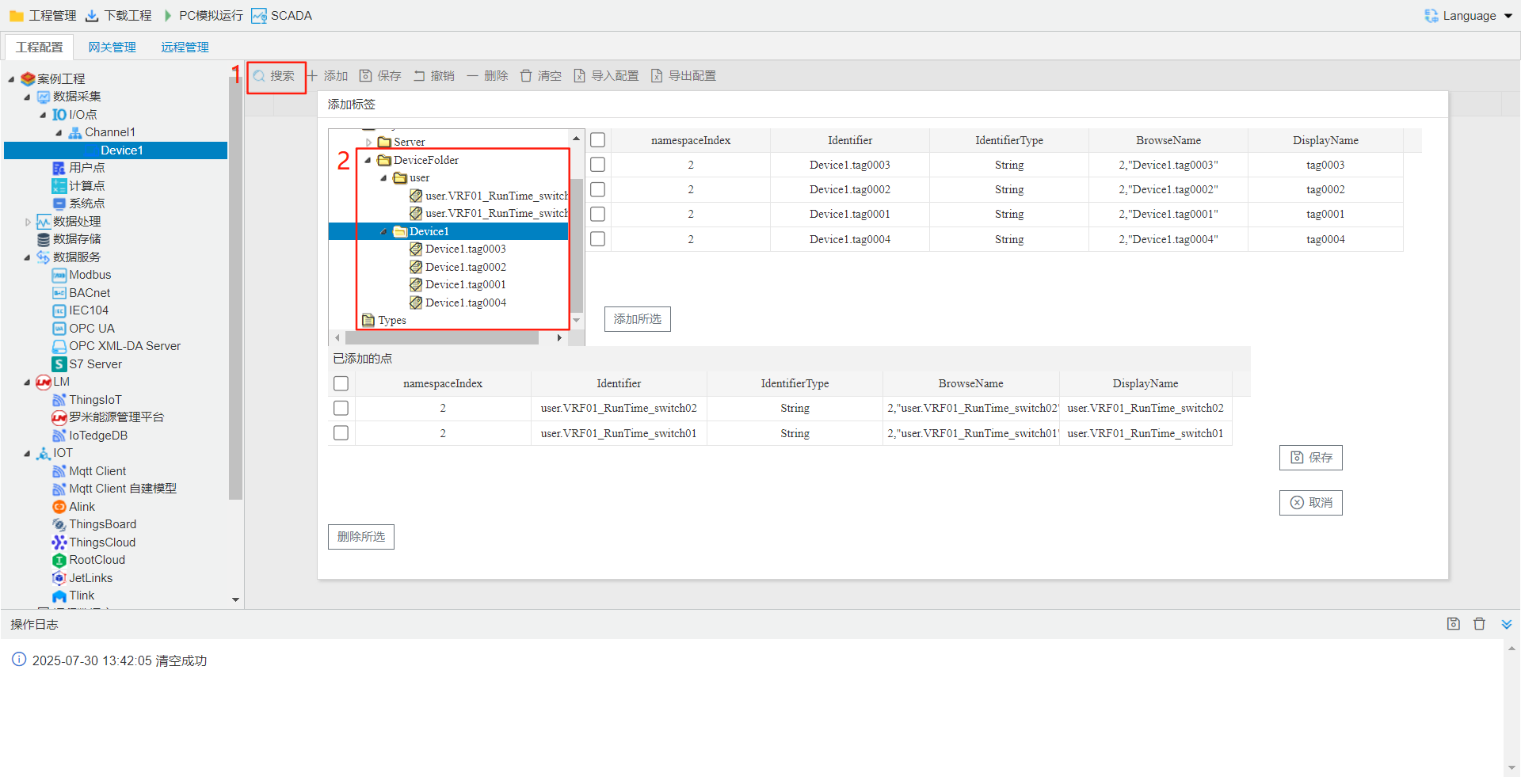
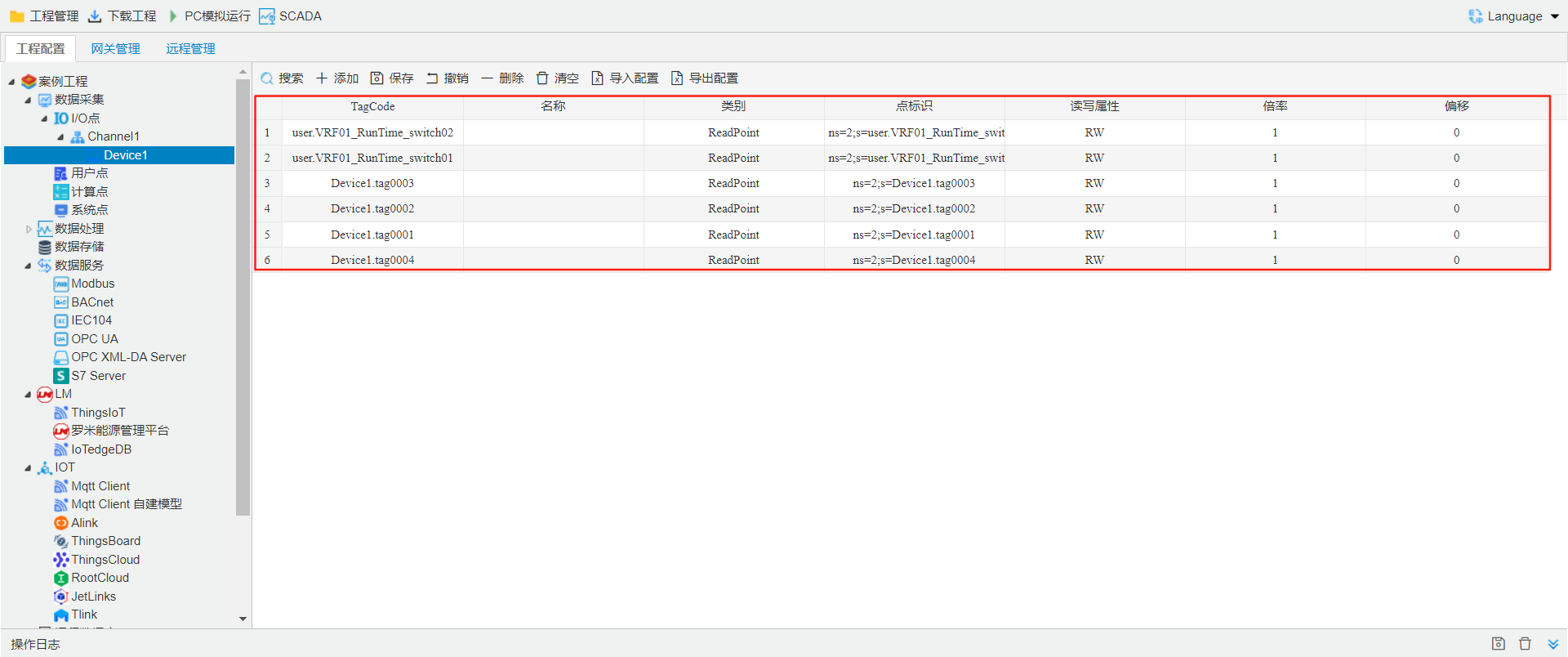
Add Acquisition Points Using the Search Function
As shown in the figure below, click Search. All available tags for collection will be displayed. Select the tags you want to collect, click Add Selected, then click Save to complete the configuration of acquisition points.
Bacnet
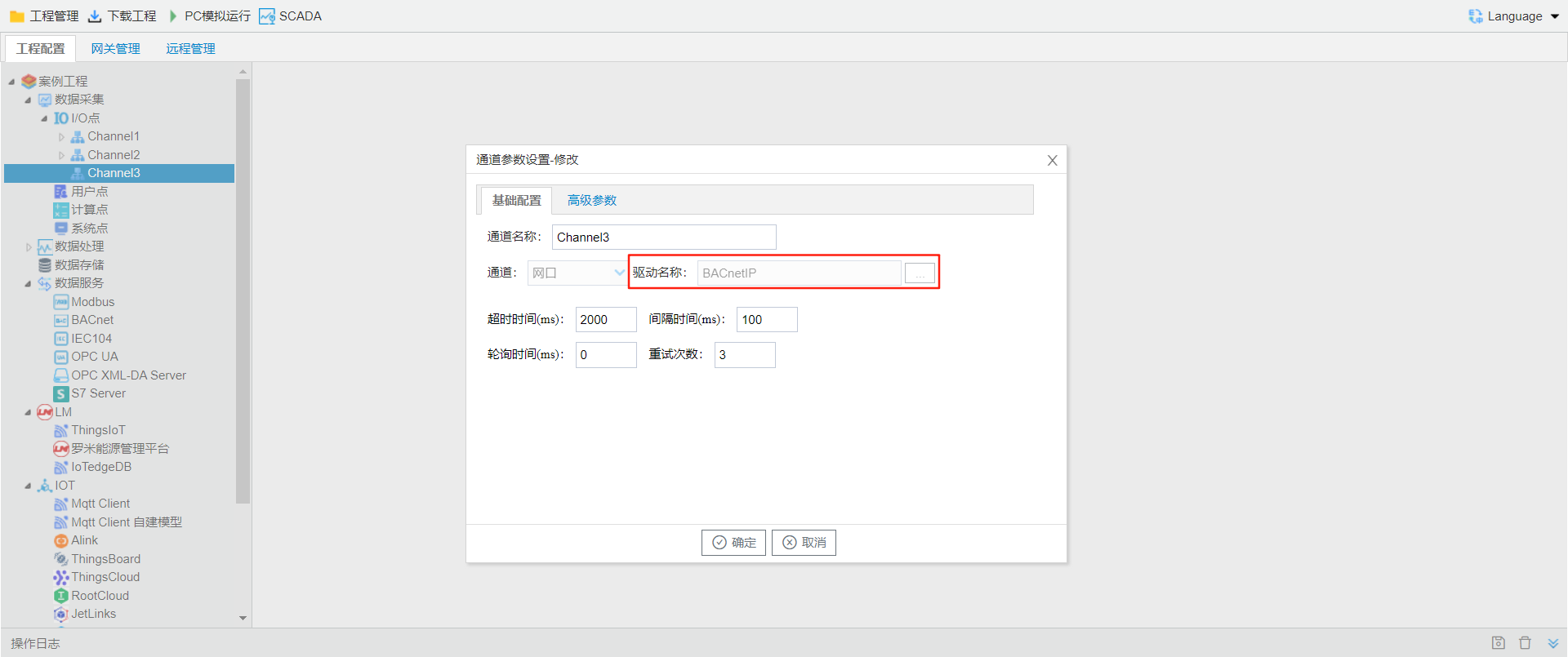
The following section uses BacnetIP as the search example; the search function is also available for BacnetMSTP.
Add Acquisition Points Using the Search Function
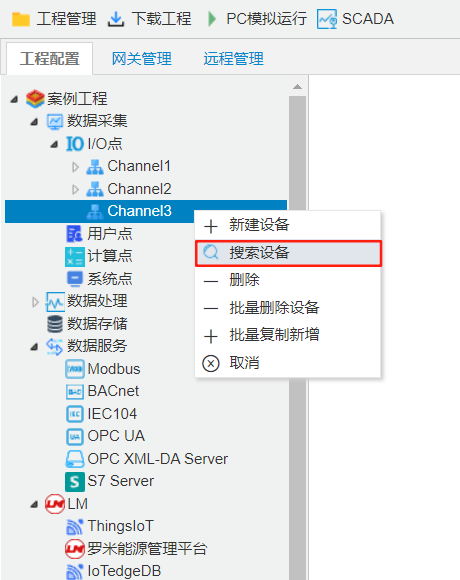
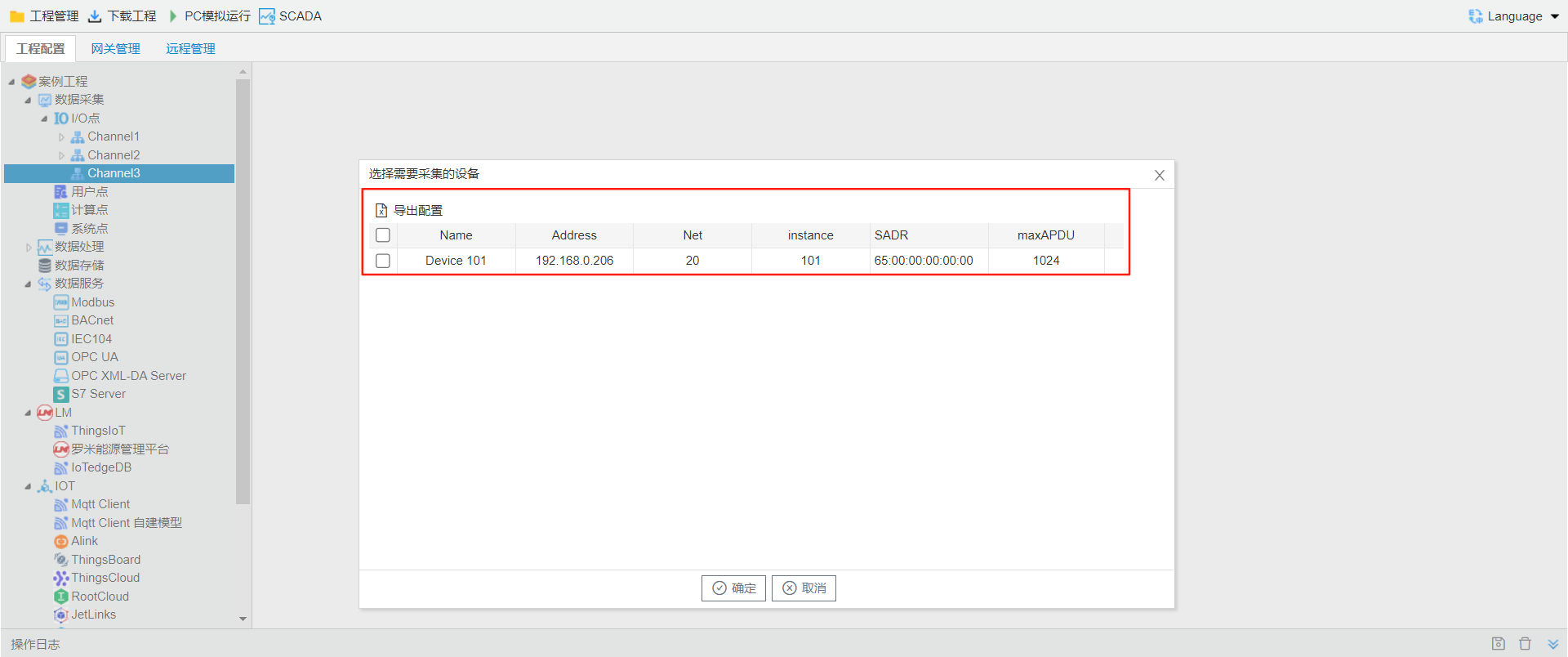
As shown in the figure below, right-click the channel and click Search Devices. A pop-up window will display all online devices.
Note: BACnet does not support cross-network segment device search. For cross-segment scenarios, use third-party software such as YABE to manually add BACnet IP port connections for service testing.
After selecting the device to be added, click "OK" to complete adding the device.
Add Acquisition Points Using the Search Function
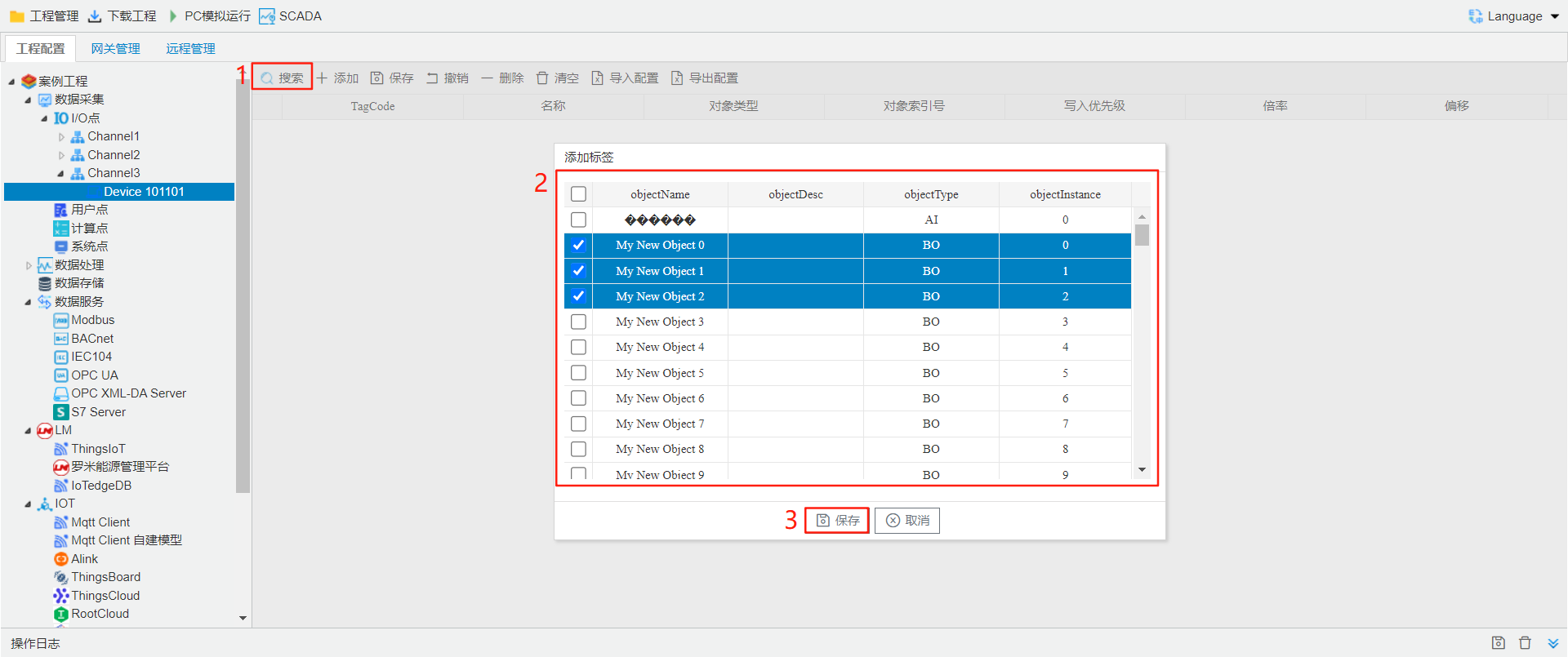
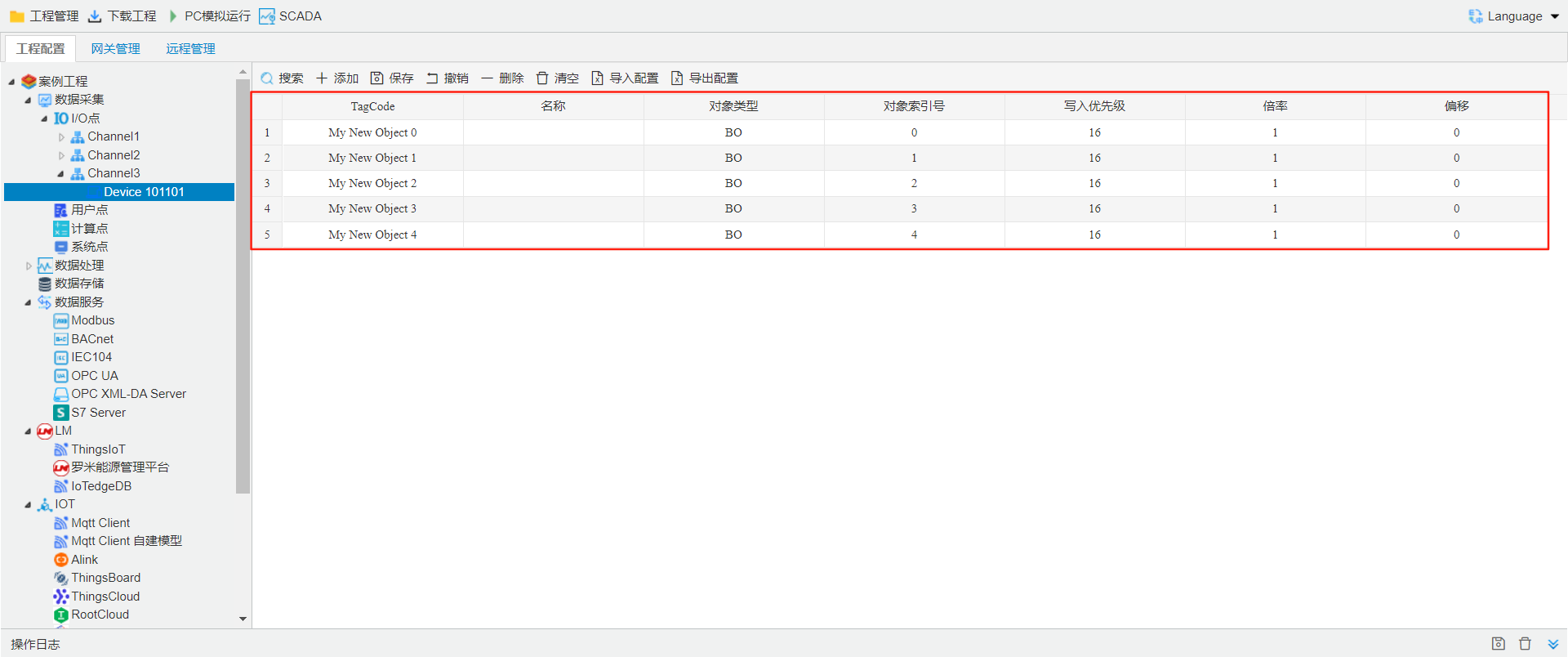
As shown in the figure below, click Search, and all available tags to be collected will be displayed. Select the target tags and click Save to complete the configuration of acquisition points.
IEC104
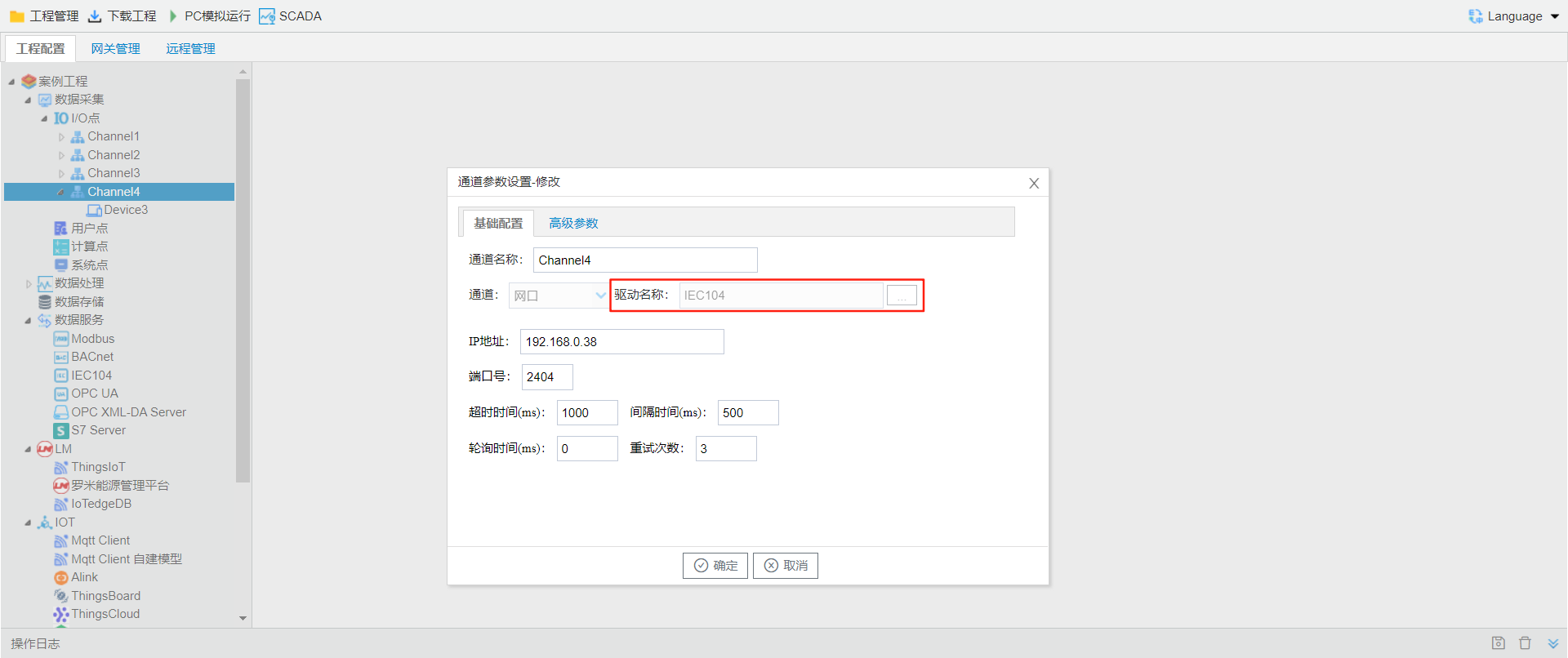
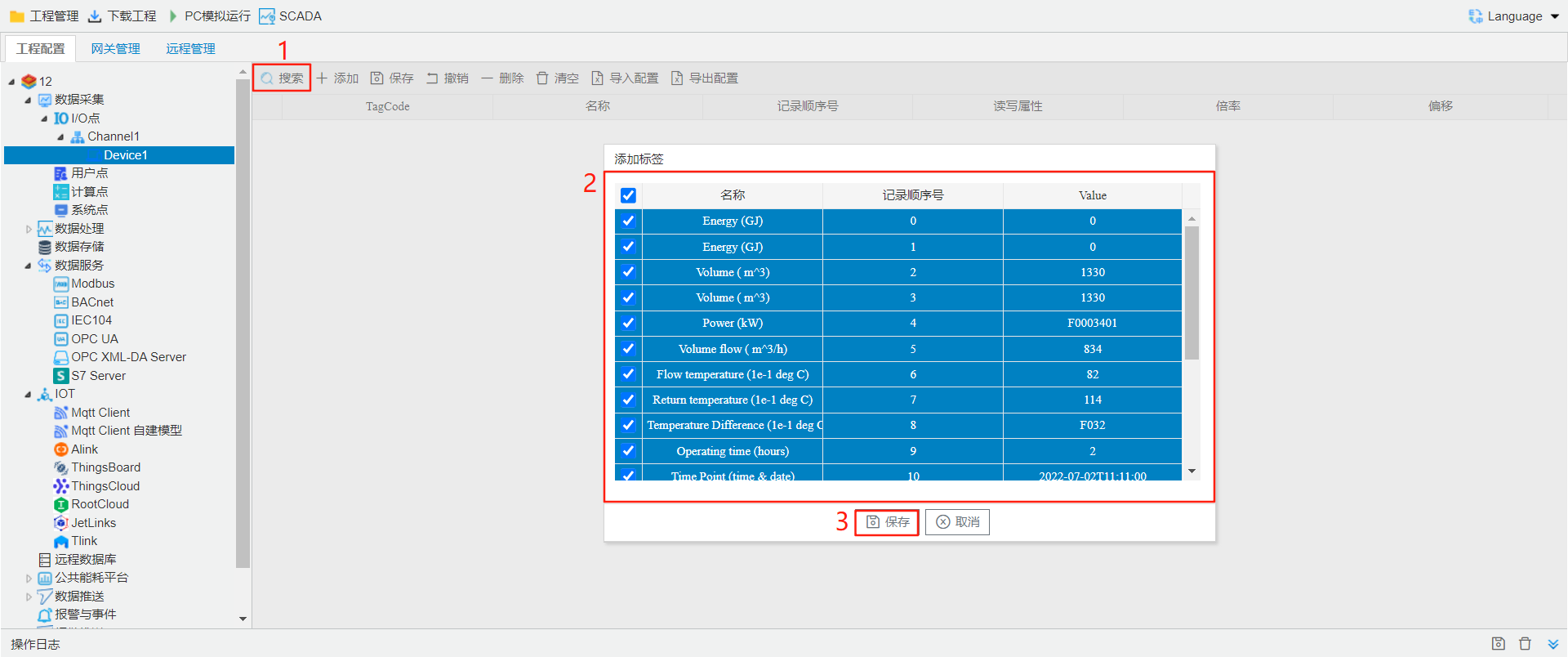
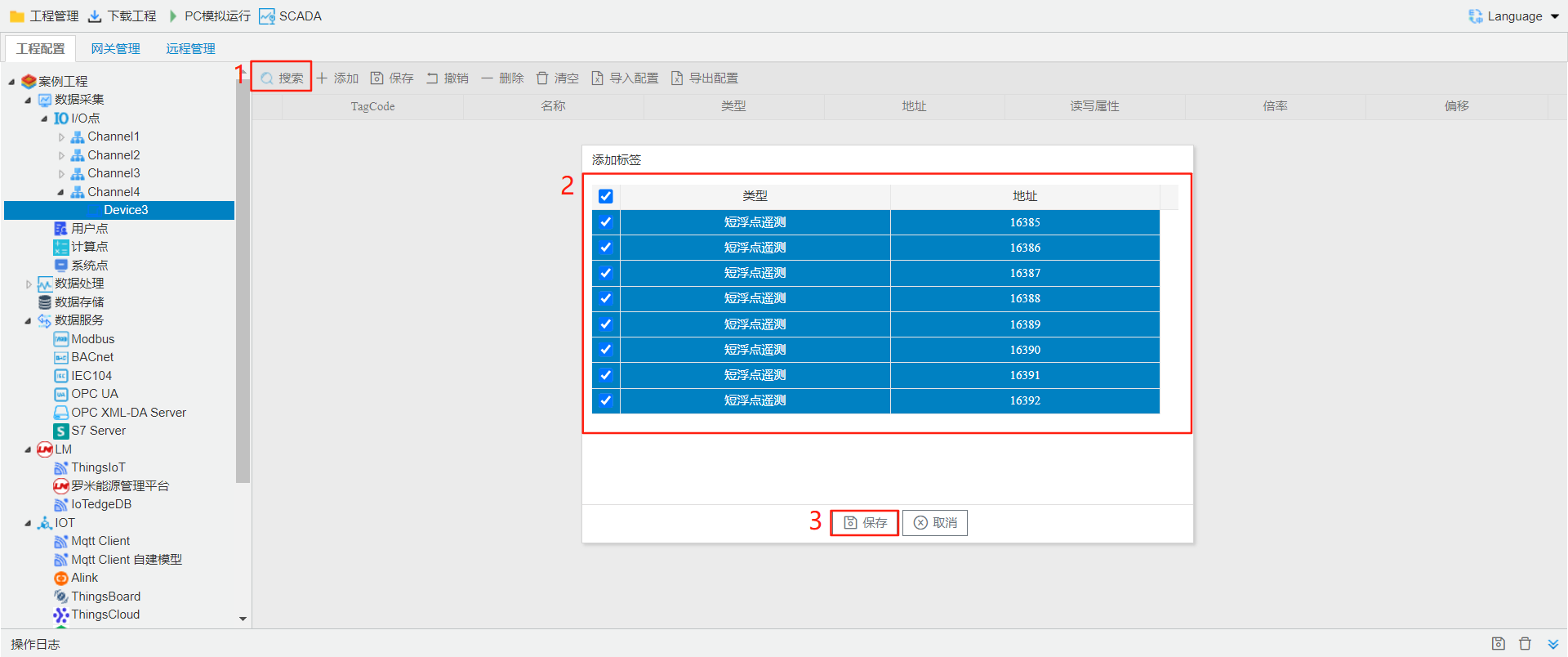
Add Acquisition Points Using the Search Function
as follows Click[search] after, currentcan tagpoint, select tagpoint, after Click[save], cancomplete acquisition point Configuration.
MBus
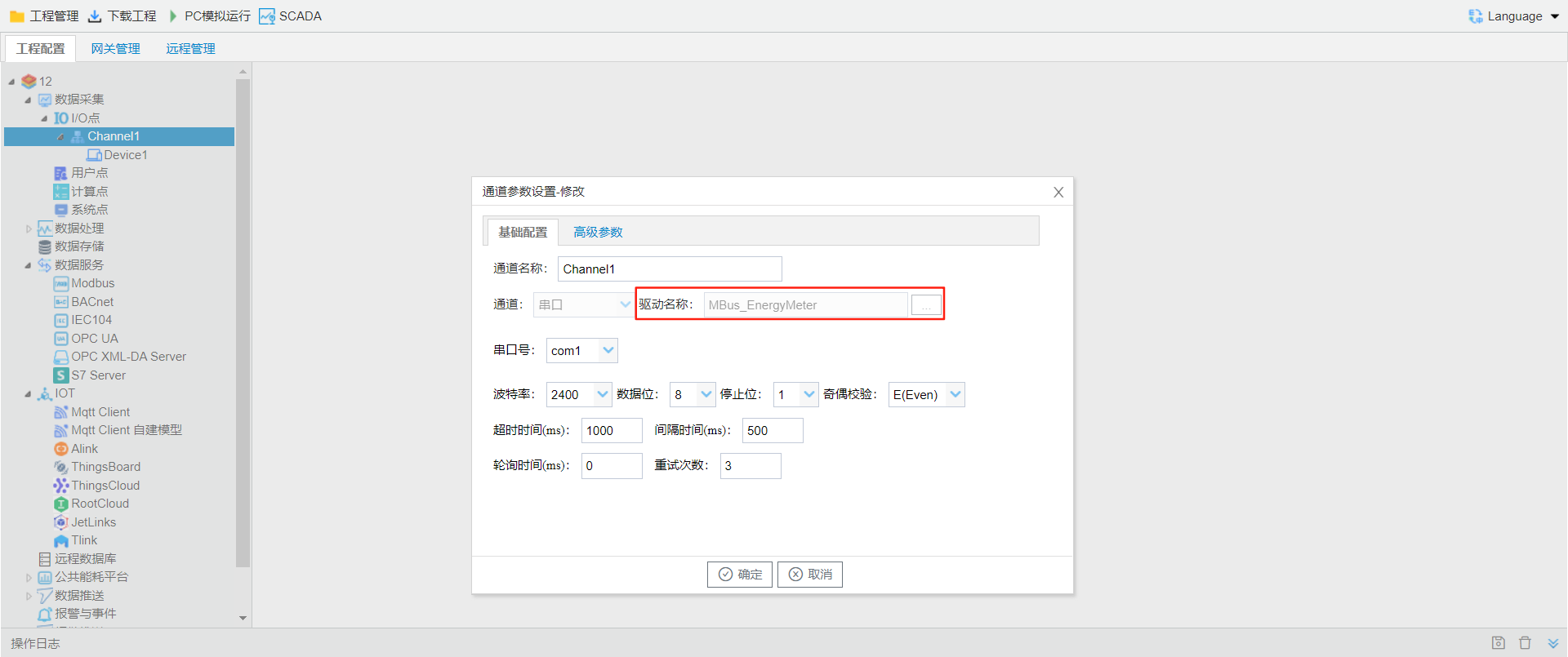
Add Acquisition Points Using the Search Function
As shown in the figure below, click Search, and all available tags to be collected will be displayed. Select the target tags and click Save to complete the configuration of acquisition points.